
Watch Configuration Help
The Watch Configuration page lets you choose what your T-Watch S3 does, then builds a custom firmware file (the program that runs on the watch) for you to download and put onto the device. The options that you can set include:
- What gesture is recognised by the watch.
- How sensitive the watch is to movement.
- Which receiver module the watch communicates with.
You don’t need any programming knowledge — just work through the page from top to bottom.
How it works: Each time you select an option or enter a value, this is written to a configuration file. When you create the firmware at the bottom of the page, this configuration file is read and used to create the firmware with. So, you can go back and change your selections as many times as you want. The configuration file is only read when you click on the ‘Generate firmware’ button at the bottom of the page.
If the option you’re setting has a ‘submit value’ button, then the value you select is not written to the configuration file until you click the submit button.
Using the T-Watch-S3 configuration website
Using this website you will configure and download a file for your watch which will be called e.g.
zeuss-twatch-s3-firmware.bin
You are free to rename the file after you download it.
The Greek god’s name at the start of the filename will probably be different from the example and will change each time that you restart the configuration page. See below for details of why this is done.
Step 1 — Check your session name
At the top of the page you’ll see your session name. This is a name of a Greek god.
Each time you re-open the configuration page, you will be assigned a new session name. This is done so that the firmware you build doesn’t get mixed up with anyone else’s. The names are taken randomly from a pool of Greek god names. When you next use the site you will probably get a different session name. This is done so that:
- If several people are using the site at the same time, everybody gets a different session name.
The firmware filename produced by the website contains the session name.
e.g. zeuss-twatch-s3-firmware.bin
This way, you get the software for your device and not for anybody elses device, even if several people are using the site at the same time. You’ll get the same names popping up if you use the site enough as there’re only so many Greek gods! The main reason for doing this is to enable several different users to access the site at the same time without interfering with each other. I could’ve used something other than Greek god names but it seemed as good a method as any.
I did add the functionality for you to assign your own session name but realised that this could be named with the name of whoever uses the system, which is a leak of personal information, so removed it.
You’re free to rename the firmware that you create after you’ve downloaded it to your own device. Renaming the file won’t change how it works, so long as you keep ‘.bin’ at the end of the filename. The ‘.bin’ ending is required so that the software that then takes your firmware and loads it onto the watch recognises the file as a firmware file.
If the session name is ‘undefined’ then there is a problem with the website! Try again in 10 minutes as this could mean that I’m uploading and testing a new version of the website and have cocked something up. I do test the website offline before loading up a new version but sometime things work offline but not on the Real World deployment site you’re using. Otherwise, let me know and I’ll get it fixed.
Step 2 — Choose a gesture
Under Gesture Selection, pick the movement the watch should respond to — a punch or a roll of the wrist. If you’re just starting out trying HandShake, choose the punch gesture. This one is the most generic gesture detection algorithm. Choose one, then click submit_gesture. The two gesture algorithms are described below. I intend to make some videos showing the two gestures and to put some links here.
Punch gesture
This is a simple algorithm that looks for a shake in any direction that exceeds the sensitivity value. The sensitivity for triggering the algorithm is set below.
A short video showing the type of motion that the punch gesture algorithm is designed to detect can be seen at:
Roll gesture
This gesture was written for a participant who had a slow wrist rolling gesture. The roll algorithm differentiates the acceleration data from a single accelerometer axis, triggering gesture detection when the differentiated value exceeds an adjustable threshold.
A short video showing the type of motion that the roll gesture algorithm is designed to detect can be seen at:
Step 3 — Set the gesture sensitivity
The Gesture Sensitivity slider controls how strong a movement has to be before the watch registers it. The value entered here is just a starting point as we can adjust the sensitivity later using the receiver:
The sensitivity can be adjusted using the jog wheel on the receiver unit and then sent to the watch using a long press on the button in the middle of this wheel.
The lower the value that is selected, the lower the amount of shake that is required to create a trigger. This means that the watch is more sensitive to faint shakes. This is as the number represents the value of acceleration that has to be exceeded for a trigger to be sent. If you don’t know what value to try, just start with the default and click submit_sensitivity.
Step 4 — Set the minimum shake interval (optional)
The Minimum Intershake Interval slider controls the minimum time (in milliseconds) that must pass between separate shake detections. This prevents the watch from registering the same shake as multiple separate events. Start with the default of 300 ms and click submit_shake_interval. If you find the watch is registering unintended multiple detections, increase this value. If you find it’s too slow to respond to rapid successive movements, decrease it.
Step 5 — Enter the T-Embed’s MAC address
Under Enter MAC Address for the T-Embed, type in the MAC address of the T-Embed receiver that this watch should send its signals to. This is what pairs the two devices together, so that your watch talks to your own receiver and not anybody else’s.
You can type the address either with colons (e.g. AA:BB:CC:DD:EE:FF) or without them
(e.g. AABBCCDDEEFF) — either format is accepted. Then click Submit MAC.
If you don’t already know your receiver’s MAC address, see the Finding the MAC address of your module page for step-by-step instructions on reading it off the device. Make sure you read the address from the T-Embed, not the watch — the watch is given the receiver’s address and the receiver is given the watch’s address, so it’s easy to get them the wrong way round.
If the address is wrong, the watch tells you: it shows *** NO LINK *** after each gesture. See If the watch shows NO LINK below.
Step 6 — Generate the firmware
Each time you change one of the controls above, make sure you’ve clicked its submit button — this saves your choice in the background.
Beside the button is the firmware version the build will produce, for example Firmware version 2026-10-09b. It is the same date the watch shows on its start-up screen once flashed and its what’s changed link goes to the watch’s list on the Firmware changes page.
When you’re happy with all your selections, click Generate Firmware. The site reads your choices and builds the firmware file. This usually takes a minute or two and you’ll see progress messages while it works, so please be patient.
The build carries on if you leave the page. Come back to this page and you’ll see its progress, or its result if it has finished.
Step 7 — Download the firmware
While the build runs, the download button shows Building…. Once the build finishes, a download option appears. Click it to save the firmware file to your computer.
Once it’s downloaded, the firmware is yours forever! You own it. No time limits, no subscriptions. All yours.
Putting the firmware onto your watch
To put this firmware onto your T-Watch S3, see the Device Flasher help page for step-by-step instructions.
I turned off the touch interface on the watch to prevent accidental touches changing things.
What the watch does when it detects a gesture
When the watch detects your gesture, it sends a signal to the T-Embed straight away, then gives a short buzz and shows *** SHAKE *** on its screen. The T-Embed then sends its keypress to your communication device. From the watch detecting the gesture to the keypress arriving takes about 30 milliseconds — too quick to notice.
The watch also checks that the T-Embed received each signal. If it did, nothing more happens. If it did not, the watch warns you, as described below.
If the watch shows NO LINK
If the T-Embed did not receive the signal, the buzz is cut short by three quick clicks and the watch shows *** NO LINK ***. No keypress was sent for that gesture.
NO LINK can also appear without a gesture. The watch checks in with the T-Embed every five or so seconds. If the T-Embed does not answer, the watch shows NO LINK and keeps showing it, without buzzing, until the T-Embed answers again. It clears by itself once the T-Embed is back on and in reach. The T-Embed shows NO LINK too when it stops hearing from the watch.
Check these, in this order:
- Is the T-Embed switched on and plugged in? The watch can only reach a T-Embed that is powered.
- Is the watch close enough? The watch uses a low-power radio to save its battery. In testing it has worked at over 10 metres. If you see NO LINK at a distance, try moving the watch closer to the T-Embed.
- Is the T-Embed’s MAC address right? If the watch shows NO LINK every time, even with the T-Embed on and close by, the address entered in Step 5 is probably wrong. Check it against the T-Embed, then generate and flash the firmware again.
Watches with firmware built before 6 October 2026 do not have this check, so they give no warning. Watches with firmware older than 2026-10-13 only show NO LINK after a gesture. Generate and flash new firmware to get both.
Watch keeps restarting every few seconds
If the watch lights up, shows the display for a few seconds, restarts and then keeps repeating that same cycle, it is almost always the firmware crashing rather than a flat battery. A battery that is genuinely too low tends to cut out at irregular moments, or not turn the watch on at all, rather than restarting in a steady rhythm.
From version 2026-10-09d the watch’s start-up screen says why it started, on the two lines under the version. watchdog or crash means the firmware and brownout means the battery. See what the reset line means.
Charge the watch for 20 minutes or so to rule power out. If it still restarts on the same few-second cycle once it has charge in it, reflash the firmware using the steps above.
If a fresh flash of the current firmware does not fix it, please get in touch and let me know, including what the reset line says. A repeating cycle like that is a fault in the firmware rather than anything you have done wrong and it helps me to know you have hit it.
Resetting the watch if it becomes unresponsive
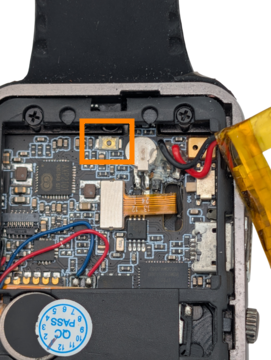
It is possible to write code that stops the watch from programming! In this case we need to turn the watch off, then turn it on while pressing a small reset button inside of the watch. I had to do this a few times when developing the firmware for the watch. Press the little reset button inside of the case, press the power button on the side of the watch for one second only release the power button, release the little button. You will feel the reset button ‘click’ in when you press it. Once the watch has restarted with the button held down, it will program again.
To access this button, you need to take the back off the watch and remove the battery in the same way that you did when first using the watch to turn on the switch that connects the battery to the watch. Note the position of the reset button shown by the orange box. I use the end of a pencil to push this down. It’s small and fiddly!
Comments
Comments are public. Please don't name anyone who uses HandShake, or say that someone took part in our research, unless it is you and you are happy for everyone to read it. You can comment with just a name, or sign in with GitHub. Our privacy notice explains what is stored.