Watch Configuration Help
The Watch Configuration page lets you choose what your T-Watch S3 does, then builds a custom firmware file (the program that runs on the watch) for you to download and put onto the device. You don’t need any programming knowledge — just work through the page from top to bottom.
What you’ll need
- A LilyGo T-Watch S3.
- A USB cable that can carry data, not just charge. (Many cheap cables only charge — if your computer doesn’t notice the watch when you plug it in, try another cable.)
- A computer running the Chrome or Edge web browser. The page you’ll use to put the firmware onto the watch doesn’t work in Firefox or Safari.
Using the Lilygo T-Watch S3 for the first time
Turning on the battery
Before you can turn on a new T-Watch S3 for the first time, you need to take the back off the watch, pull out the battery and turn on the power switch to connect the battery to the watch. This caught me out! I thought I had a bad watch and all I had to do was turn it on inside! Without the battery turned on, the watch still works when connected to a USB port using the mini-USB socket (see below). This is as the watch will draw power through the USB connection even with the battery disconnected.
The on/off slide switch is under the battery at the base of the circuit board. As with everything, it is straight forwards when you know how, but the switch is small and hidden, so I’ve put a few photos together to help.
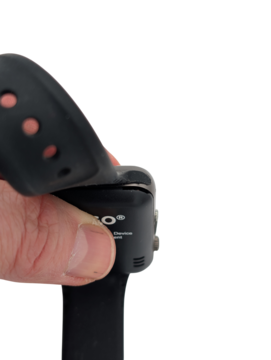
The photo below shows the corner of the back plate that has a little recess allowing you to remove it easily.
Inside the T-Watch S3 you can see the battery:
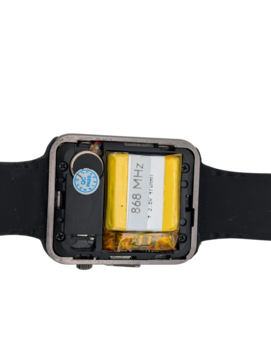
The battery needs to be pulled out. It stays attached to the circuit board by two wires. The battery is not removable, which is a bonus as it can’t be dropped then swallowed by your dog or a toddler or an unsupervised academic.
The orange square in the photo below shows where the battery on/off switch is. The watch ships with this in the off position. You need to move the switch to the on position then replace the battery and the back plate.
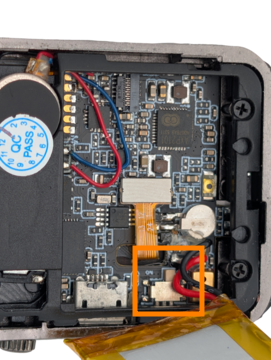
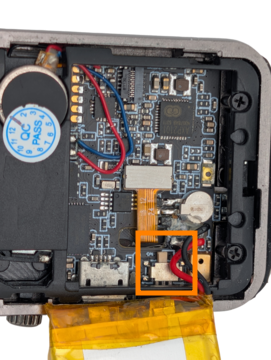
USB Socket and power switch postion
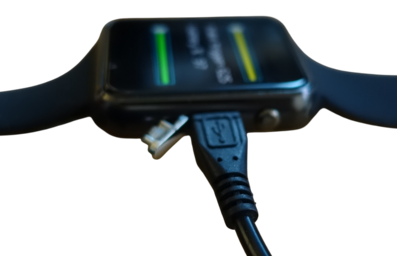
The image below shows the side of the watch. This photo shows the silver mini-USB socket cover and the on/off button.
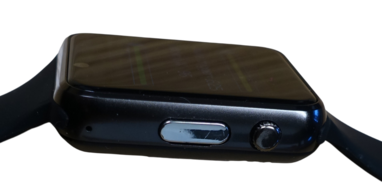
The silver cover on the side of the watch is on top of a mini-USB socket.
The T-Watch S3 uses a mini-USB socket, not the latest USB-C sockets. This socket has two uses:
- Charging using a powered USB socket or a 5V USB charger.
- Loading new code onto the watch.
The cover over the mini USB socket is a little tricky to get off the first time. There is a little recess on the bottom of the cover. Pull it open with a fingernail. The cover will not drop off the watch when it is opened as it is attached to the watch by a hinge.
Turning on the watch
To turn the watch on or off: press the button for about 3 seconds. If you hold down the button too long, the watch turns off again as soon as it turns on. Which is a little confusing!
This button on the watch rotates but the rotation has no functionality.
Connecting the USB cable to charge and program the T-Watch S3
The watch ships with a short mini-USB cable which works for both charging and programming the watch. Simply plug the USB cable into the socket and your laptop or PC. I’ve not managed to program the watch from an Android phone, I’ve always had to use a laptop or PC. I’ve tested with Windows and Linux and had reports that it all works well with the Mac, but I don’t have a Mac to verify this.